Phone Problems? The Complete Troubleshooting Guide for iPhone and Android
Battery, charging, overheating, Wi-Fi, frozen screens, crashing apps and more: find your phone problem, try the five universal fixes, and follow step-by-step guides for each issue.
Information current as of November 2026 · How we research · Report an error
Most phone problems aren’t caused by a broken phone. They’re caused by a drained or aging battery, a full storage, a software glitch, a worn cable or a bit of lint in the charging port, and you can fix all of these yourself in minutes. This guide helps you find your problem quickly, try the fixes that solve most issues, and then go deeper with a step-by-step guide for each one.
The 5 fixes that solve most phone problems
Before anything else, try these in order. They’re safe, don’t erase your data, and fix a surprising number of issues.
- Restart the phone. It clears frozen processes, memory leaks and stuck connections.
- Update the system and your apps. Many bugs, battery drains and crashes are fixed in updates.
- Free up storage. Keep at least 10% free. A nearly full phone slows down, crashes apps and may fail to update.
- Check the charger, cable and port. Use a wall outlet and a known-good cable, and gently clean lint out of the port.
- Let it cool down. Heat causes slowdowns, charging pauses and shutdowns.
How to force restart a frozen phone
When the screen doesn’t respond, a normal restart isn’t possible. A force restart doesn’t erase anything:
- iPhone 8 and later: press and release volume up, press and release volume down, then hold the side button until the Apple logo appears.
- Samsung Galaxy: hold side key + volume down for more than 7 seconds.
- Pixel and most other Android phones: hold the power button for about 30 seconds (or power + volume down on some models).
Find your problem
| Problem | Most likely causes | Guide |
|---|---|---|
| Battery drains fast | Screen brightness, background apps, weak signal, aging battery | Battery drain fixes |
| Won’t charge or charges slowly | Cable, adapter, lint in the port, heat | Phone not charging |
| iPhone stops at 80% | Optimized or limited charging (a feature) | iPhone stuck at 80% |
| Gets hot | Heavy apps, charging while using, sun, weak signal | Phone overheating |
| Won’t turn on | Empty battery, frozen software, display fault | Phone won’t turn on |
| Slow and laggy | Full storage, old software, too many background apps | Speed up a slow phone |
| Storage full | Photos, videos, app caches, messages | Free up storage |
| Won’t connect to Wi-Fi | Router, saved settings, wrong password | Wi-Fi fixes |
| Touch screen not responding | Screen protector, moisture, frozen software, damage | Touch screen fixes |
| Apps crash or close | Outdated app, corrupted cache, low storage | Apps keep crashing |
| Strange behavior, pop-ups | Malicious apps, compromised accounts (or just a bug) | Signs your phone is hacked |
| Lost or stolen | Misplaced at home, left somewhere, theft | Find a lost phone |
Battery and charging problems
Batteries are consumable: after a few years of daily charging they hold less charge, and the phone may slow down or shut off unexpectedly. Heat is the main thing that ages them faster.
- Check battery health: on iPhone, Settings → Battery → Battery Health. On Android, look in Battery or Device care settings, or the manufacturer’s support app.
- Battery drains quickly: check the battery screen for apps using unusually high power, lower brightness, and turn off background refresh for apps you rarely use. → Why Your Phone Battery Drains So Fast
- Won’t charge: swap the cable and adapter, use a wall outlet, and clean the port with a wooden toothpick (phone off). → Phone Not Charging? 11 Fixes
- Charging stops at 80%: this is usually a battery-protection feature. → iPhone Not Charging Past 80%?
If your battery health is low (around 80% or below on iPhone) and the phone shuts down unexpectedly, a battery replacement is often much cheaper than a new phone.
→ Learn more: How Lithium-Ion Batteries Work and How Fast Charging Works
Is it time for a new battery? Answer 5 quick questions and find out.
Free Battery Health Checker →Heat, power and startup problems
- Phone is hot: stop heavy apps, unplug it, remove the case and move it to a shaded, cool place. Never put it in the fridge. → Why Is My Phone Getting Hot?
- Won’t turn on: charge for 30 minutes with a known-good charger, then force restart. If it rings but the screen is black, the display is the problem. → Phone Won’t Turn On?
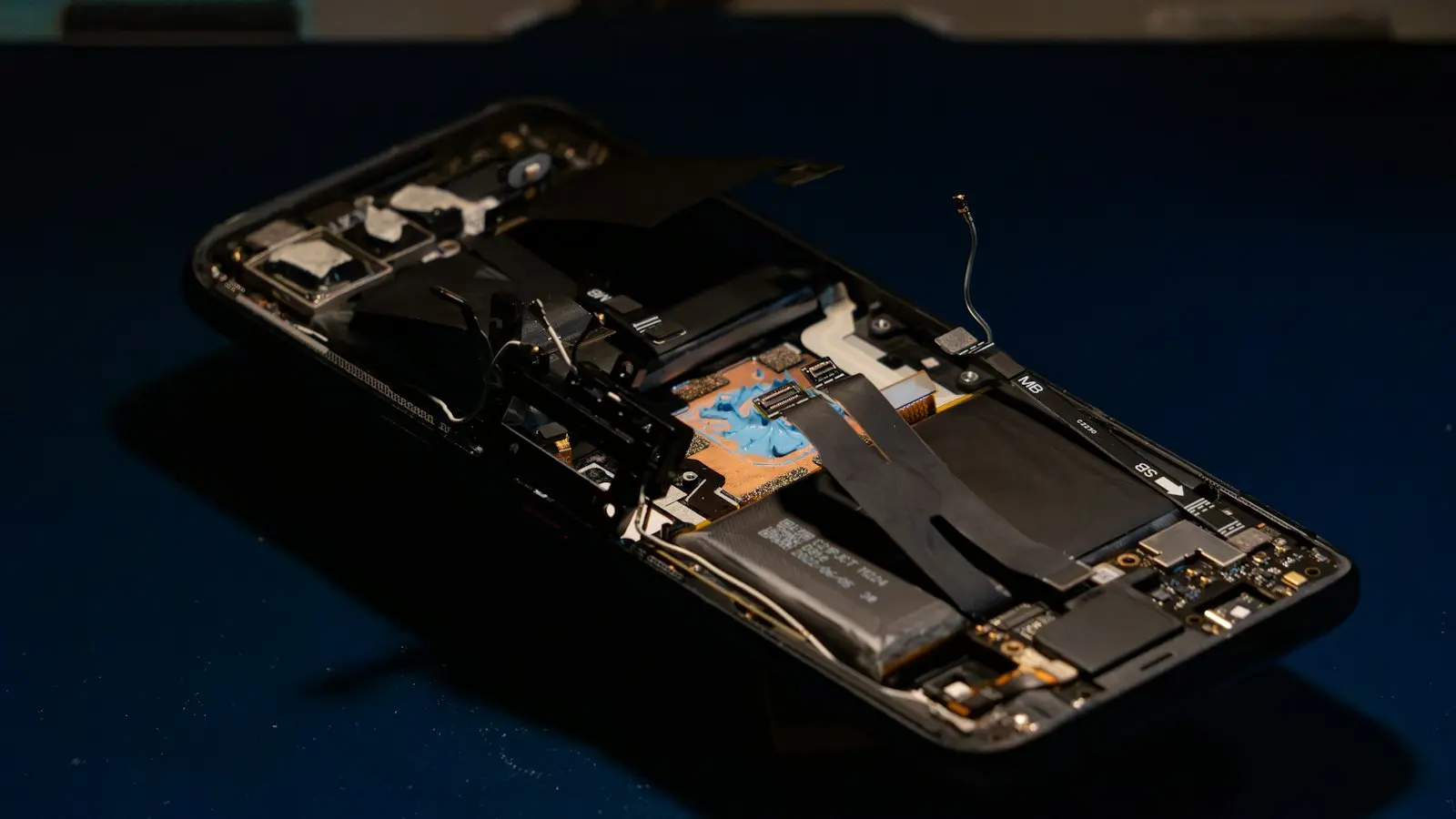
Safety first: if the case or screen is bulging, the battery may be swelling. Stop using and charging the phone, and take it to a repair shop.
Performance and storage problems
A slow phone is usually a full phone. Photos, videos, downloaded media and app caches pile up quietly.
- Phone Storage Full? How to Free Up Space
- Phone Running Slow? 10 Ways to Speed It Up
- Apps Keep Crashing? 9 Fixes
Screen and touch problems
Unresponsive screens are often caused by a damaged screen protector, moisture or frozen software, not a broken display. Remove the protector and case, clean the screen, and force restart before booking a repair.
→ Touch Screen Not Working? How to Fix It
Connection problems
- Wi-Fi: restart the phone and router, then forget the network and reconnect. → Phone Won’t Connect to Wi-Fi?
- Slow internet at home: often the router’s position or channel. → How to Fix Slow Wi-Fi at Home
- Bluetooth: forget the device on both sides and pair again. → How Bluetooth Works
- Connecting to a TV: → How to Connect Your Phone to a TV
The “reset network settings” fix
When connection problems persist, resetting network settings clears saved Wi-Fi networks, Bluetooth pairings and VPN settings, but not your photos, apps or data:
- iPhone: Settings → General → Transfer or Reset iPhone → Reset → Reset Network Settings.
- Pixel and many Android phones: Settings → System → Reset options → Reset Wi-Fi, mobile & Bluetooth.
- Samsung: Settings → General management → Reset → Reset network settings.
Security problems
Unexpected pop-ups, apps you didn’t install, or accounts sending messages you didn’t write can point to a security problem, but they often have ordinary explanations too.
- Signs Your Phone Has Been Hacked (and How to Fix It)
- The Complete Online Security Guide
- How to Find a Lost or Stolen Phone
Before any big fix: back up
A factory reset, a repair or a replacement phone are all much less stressful if your photos and data are safe.
Safe Mode and factory reset: the last resorts
- Safe Mode (Android) temporarily disables apps you installed. If a problem disappears in Safe Mode, an app is the cause. Press and hold the power button, then touch and hold Power off until you see the Safe Mode option. Restart normally to exit.
- Factory reset erases everything and restores the phone’s original software. It solves deep software problems, but only do it after backing up.
When to get a repair
Software fixes can’t repair hardware. Contact the manufacturer or an authorized repair shop if:
- The battery or screen is swelling.
- The phone was dropped or got wet and is now misbehaving.
- It won’t charge with any known-good charger after the port is cleaned.
- Part of the screen never responds, or shows lines or spots.
- It won’t turn on after 30 minutes of charging and a force restart.
Check your warranty or insurance first, and ask whether the repair will keep your data.
A simple maintenance routine
| How often | What to do |
|---|---|
| Every week | Restart your phone |
| Every month | Install updates, delete unused apps, check storage |
| Every few months | Clean the charging port and speaker grilles gently, check battery health |
| Always | Keep photos backing up automatically, avoid heat while charging |
The bottom line
Before you pay for a repair or a new phone, run through the five universal fixes: restart, update, free up storage, check the charger and port, and let it cool down. Then use the table above to jump to the guide for your problem. Most issues are solved in minutes, and the ones that aren’t are much easier to handle with a recent backup.