Phone Won't Turn On? What to Do, Step by Step (iPhone and Android)
Black screen, no response, or stuck on the logo? Follow these steps in order to bring a dead-looking iPhone or Android phone back to life, and learn when it's time for a repair.
Information current as of November 2026 · How we research · Report an error
A phone that won’t turn on feels like a disaster, but it’s often not as bad as it looks. In many cases, the battery is completely drained, the software has frozen with the screen off, or the screen itself is the problem while the phone is still running underneath. Work through these steps in order before you assume it’s broken.
First: is it off, or is the screen just dark?
Before anything else, check for signs of life:
- Does it vibrate or make a sound when you plug it in, or when someone calls it?
- Do you feel it get warm?
- Does the flashlight turn on from the lock-screen shortcut, or do notifications make sounds?
If the phone rings or vibrates but the screen stays black, the phone is on and the display has a problem. Skip to “If the screen is black but the phone is on” below.
Step 1: Charge it for at least 30 minutes
A completely empty battery can take several minutes before the phone has enough power to show anything.
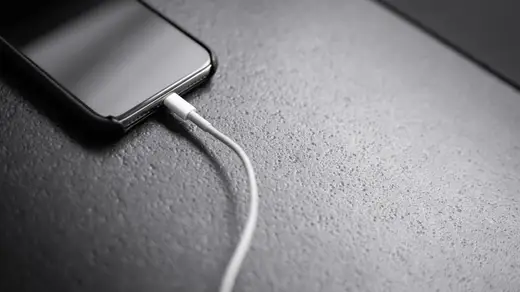
- Use a wall outlet (not a laptop) with a cable and adapter you know work.
- Leave it for at least 30 minutes.
- On iPhone, you may see a red battery icon with a cable symbol: that means “keep charging.”
If nothing happens, try a different cable and adapter, and check the charging port for lint (gently, with a wooden toothpick, with the phone off).
→ Phone Not Charging? 11 Fixes
Step 2: Force restart
If the battery has charge but the software has frozen with the screen off, a normal press of the power button does nothing. A force restart cuts power to the processor and reboots it. It doesn’t erase your data.
iPhone 8 and later (including iPhone SE 2nd gen and newer)
- Press and quickly release volume up.
- Press and quickly release volume down.
- Press and hold the side button. Keep holding, even if you see the power-off slider, until the Apple logo appears (this can take 10 to 30 seconds).
iPhone 7
Press and hold volume down and the side (sleep/wake) button together until the Apple logo appears.
Android
- Most phones (including Pixel): press and hold the power button for about 30 seconds, or hold power + volume up (Pixel) or power + volume down (many others) until it restarts.
- Samsung Galaxy: press and hold side key + volume down for more than 7 seconds.
Try a force restart while plugged in, too.
Step 3: Let it cool down, or warm up
Phones refuse to start when they’re too hot or too cold. If it was in the sun, a hot car or freezing weather, bring it to room temperature for 30 minutes, then try again.
→ Why Is My Phone Getting Hot?
If the screen is black but the phone is on
Signs: it vibrates, rings or plays sounds, but the screen shows nothing.
- Turn up brightness with a voice assistant (“Hey Siri, turn brightness to 100%” or “Hey Google, increase brightness”). It may simply have been set too low.
- Force restart using the steps above.
- Check for damage: a recent drop can disconnect or crack the display without visible damage on the glass.
If it stays black after a restart, the display probably needs repair. Your data is likely fine.
If it’s stuck on the logo (boot loop)
If the phone turns on but never gets past the Apple or Android logo, or keeps restarting:
iPhone: use recovery mode to update
- Connect the iPhone to a Mac (Finder) or Windows PC (Apple Devices app or iTunes).
- Use the force-restart button sequence above, but keep holding the side button past the Apple logo until you see the recovery mode screen (a computer and cable).
- On the computer, choose Update. This reinstalls iOS without erasing your data.
- Only choose Restore if Update fails, as Restore erases the phone.
Android: try Safe Mode and storage
- Try booting into Safe Mode. On many phones, hold volume down while the phone starts up. If it starts in Safe Mode, a recently installed app is the likely culprit: uninstall it and restart normally.
- A phone with completely full storage can sometimes fail to boot properly. If it reaches the home screen in Safe Mode, free up space.
- As a last resort, the phone’s recovery menu offers a factory reset, which erases everything. Only do this if your data is backed up or you’ve accepted losing it.
→ Phone Storage Full? How to Free Up Space
Signs of liquid damage
If your phone got wet recently:
- Power it off if it’s still on, and don’t try to charge it.
- Dry the outside, and leave it in a dry place with airflow for a day or more.
- Don’t use a hair dryer or put it in rice; heat can damage it, and rice dust can get into the ports.
Water damage can appear hours or days later, so even if it works after drying, back it up soon.
Signs the battery has failed
- The phone only turns on while plugged in.
- It shuts off suddenly at 20 to 40%.
- The case or screen is bulging. Stop using it immediately: a swollen battery is a safety risk.
A battery replacement is usually much cheaper than a new phone.
When to get it repaired
Take it to the manufacturer or an authorized repair shop if:
- It shows no sign of life after 30+ minutes of charging with known-good accessories and a force restart.
- The screen stays black although the phone vibrates or rings.
- It’s stuck in a boot loop that recovery mode doesn’t fix.
- It was dropped or got wet.
Before handing it over, check your warranty or insurance, and ask the shop whether the repair will keep your data.
Protect yourself for next time
Losing access to a phone is far less stressful when your photos and data are backed up.
→ How to Back Up Your Phone Photos → How to Transfer Everything to a New Phone
The bottom line
Most “dead” phones come back with two steps: charge for 30 minutes with a known-good charger, then force restart. If the phone rings but the screen is black, the display needs attention. If it’s stuck on the logo, an iPhone can be updated through recovery mode without losing data. If none of this works, it’s time for a repair, and a good backup makes that much less painful.