How to Transfer Everything to a New Phone: iPhone, Android and Switching Between Them
Got a new phone? Here's how to move your photos, contacts, apps, WhatsApp chats and settings from iPhone to iPhone, Android to Android, or between the two, without losing anything.
Information current as of November 2026 · How we research · Report an error
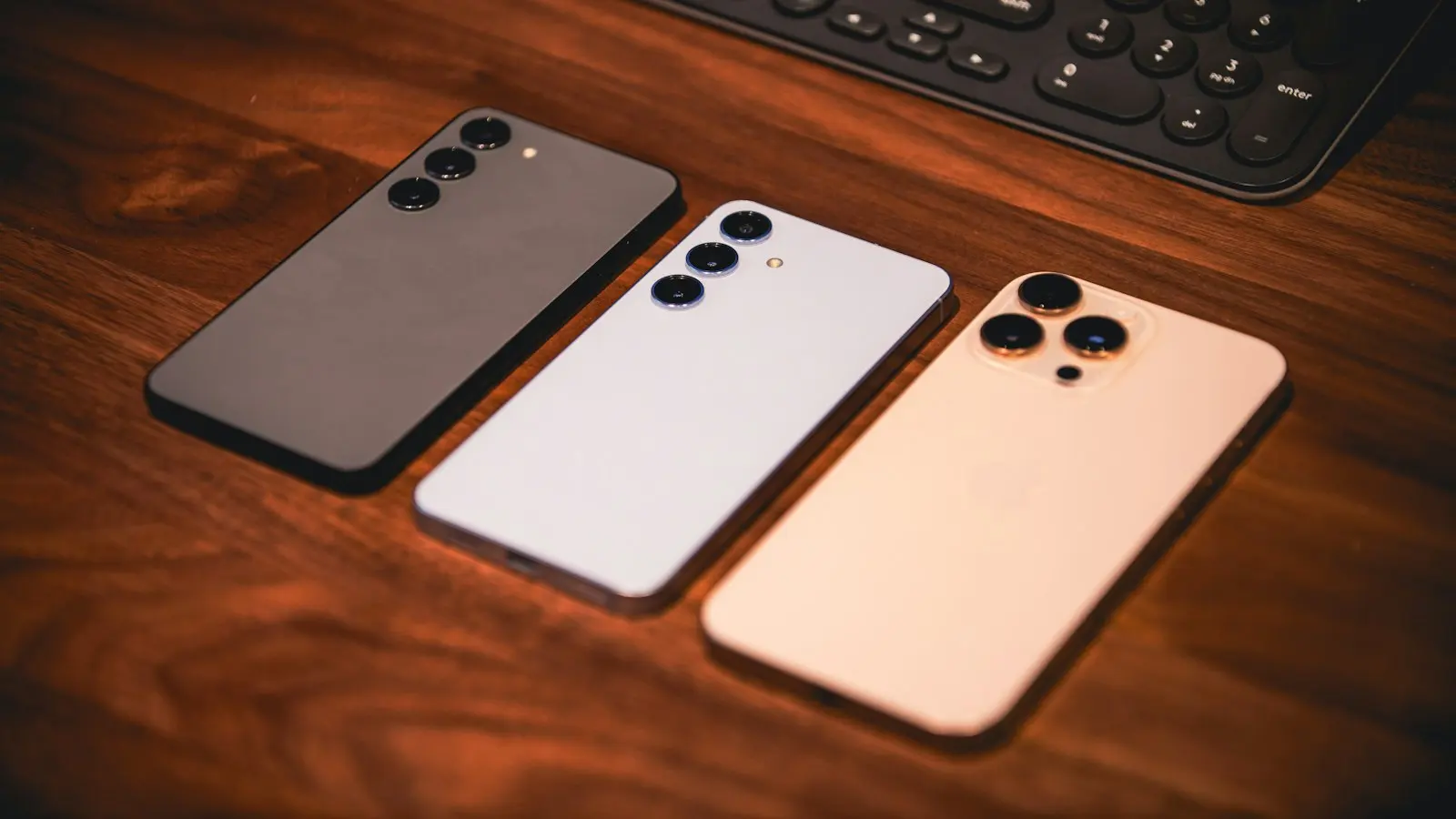
Setting up a new phone should be exciting, not stressful. The good news is that moving your data has become much easier: the built-in tools can transfer almost everything, often in under an hour. The key is to prepare properly and to know which method fits your situation.
Before you start: a checklist
- Charge both phones and keep them plugged in during the transfer if possible.
- Back up the old phone (iCloud or a computer for iPhone; Google backup for Android).
- Update both phones to the latest software.
- Connect both to the same Wi-Fi network.
- Know your passwords: your Apple or Google account, and important apps.
- Back up WhatsApp and other messaging apps separately (see below).
- Check two-factor authentication apps: make sure your authenticator codes can be moved, or that you have backup codes.
- Don’t reset or give away the old phone until you’ve confirmed everything arrived.
iPhone to iPhone
Quick Start (easiest)
- Turn on the new iPhone and place it next to the old one.
- A Quick Start screen appears on the old iPhone, offering to set up the new one with your Apple Account. Tap Continue.
- Scan the animation on the new iPhone with the old iPhone’s camera.
- Enter your old iPhone’s passcode on the new one.
- Choose to Transfer from iPhone (directly) or from an iCloud backup.
A direct transfer copies your apps, data and settings phone-to-phone. Keep the phones close together until it finishes.
Other options
- iCloud backup: restore during setup by choosing your most recent backup.
- Computer: back up with Finder (Mac) or the Apple Devices app or iTunes (Windows), then restore on the new iPhone.
Android to Android
Built-in transfer during setup
- Turn on the new phone and follow the setup steps.
- When asked whether to copy apps and data, choose to copy from your old phone.
- Connect the phones with a cable if prompted (faster and more reliable) or follow the on-screen wireless instructions.
- Sign in to your Google account and choose what to copy.
Samsung Smart Switch
If your new phone is a Samsung Galaxy, Smart Switch can transfer from almost any Android phone or from an iPhone, including messages, call logs, photos and many settings. It’s often preinstalled; otherwise, download it from the Play Store.
Google backup
If the old phone isn’t available, restoring from your Google account backup during setup brings back your apps, contacts, settings and, if Google Photos backup was on, your photos.
iPhone to Android
- On the iPhone, turn off iMessage and FaceTime (Settings → Apps → Messages and FaceTime). This is important: otherwise, texts from other iPhone users may not reach your new phone.
- During Android setup, choose to copy data from an iPhone. Recent Android phones guide you through it with a cable or the Switch to Android app on the iPhone.
- On Samsung phones, you can use Smart Switch instead.
Contacts, photos, videos and calendar events transfer well. Paid apps don’t carry over between platforms, but many apps are free on both, and subscriptions tied to your account (such as streaming services) work after you sign in.
Android to iPhone
- On the Android phone, install Apple’s Move to iOS app from the Play Store.
- Start setting up the new iPhone. On the Transfer Your Apps & Data screen, choose From Android.
- A code appears on the iPhone. Enter it in Move to iOS on the Android phone.
- Select what to transfer: contacts, messages, photos, videos, calendars, email accounts and more.
Keep both phones close, connected to power, and don’t use the Android phone until the transfer finishes.
WhatsApp: the one people often lose
WhatsApp chats aren’t always included in a standard phone transfer, so check before resetting your old phone.
- Same platform (iPhone to iPhone, Android to Android): back up your chats in WhatsApp → Settings → Chats → Chat backup to iCloud or Google Drive, then restore when you set up WhatsApp on the new phone with the same phone number. WhatsApp also offers a direct Transfer chats option between phones of the same platform.
- Between platforms: WhatsApp supports moving chat history from Android to iPhone during the Move to iOS process, and from iPhone to Android during the Android setup process on supported phones. Follow WhatsApp’s official instructions for your devices.
After the transfer
- Check that photos, contacts and messages arrived.
- Sign in to apps that require it, especially banking apps, which often need to be set up again.
- Move authenticator apps or set them up again before wiping the old phone.
- Set up your screen lock, Face ID or fingerprint.
- Turn on Find My or Find My Device on the new phone.
Prepare the old phone for selling or giving away
- Sign out of your Apple Account (iPhone) or remove your Google account (Android). This disables activation lock so the next owner can use it.
- Unpair watches and earbuds.
- Factory reset the phone: on iPhone, Settings → General → Transfer or Reset iPhone → Erase All Content and Settings; on Android, Settings → System → Reset options → Erase all data.
- Remove your SIM card.
The bottom line
Prepare first (backups, updates, WhatsApp), then use the built-in tools: Quick Start for iPhone, the Android setup copy option or Smart Switch for Android, and Move to iOS or Switch to Android between platforms. Check everything arrived before you wipe the old phone.