Phone Not Charging or Charging Slowly? 11 Fixes for iPhone and Android
Plugged in but nothing happens, or charging takes forever? Work through these fixes in order, from the cable and the port to software settings, before paying for a repair.
Information current as of November 2026 · How we research · Report an error
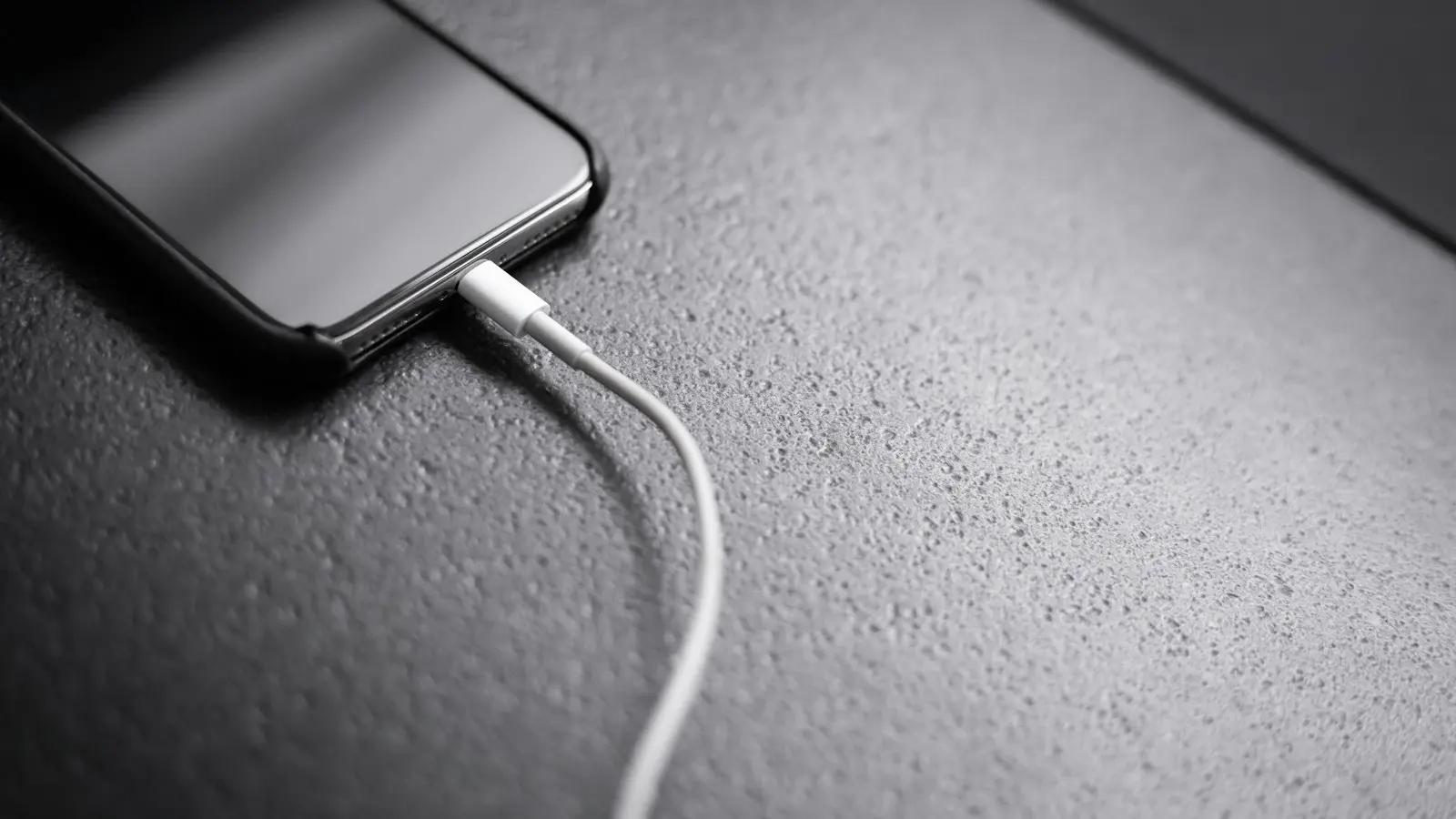
Few things are more stressful than plugging in a nearly dead phone and seeing nothing happen. The good news: most charging problems are caused by something cheap and simple, such as a worn cable, a weak power adapter or lint packed into the charging port. This guide walks you through the fixes from the most likely and easiest to the least.
iPhone stuck at 80%? That’s usually a feature, not a fault. See iPhone Not Charging Past 80%? Here’s Why.
Step 1: Figure out what kind of problem it is
- No charging at all: no lightning-bolt icon, no sound or vibration when you plug in.
- Charging very slowly: it charges, but takes hours.
- Charging on and off: it connects and disconnects, or only works at a certain angle.
- “Not charging” message: the phone sees the charger but refuses to charge, often because of heat or moisture.
The fixes below cover all four, but keep your symptom in mind as you go.
1. Try a different cable
Cables are the most common point of failure. They bend at the ends thousands of times and break internally even when they look fine.
- Try another cable you know works with another phone.
- Look for fraying, kinks or a loose connector.
- Avoid very cheap, unbranded cables. For iPhone Lightning cables, look for MFi (“Made for iPhone”) certification. For USB-C, choose a reputable brand.
Shopping tip · We may earn a commission
Need a reliable spare cable? Stick to well-known brands such as Anker or Ugreen, and check that the cable supports the charging speed your phone uses. For iPhones with Lightning, look for MFi certification.
Browse Anker & Ugreen cables on AliExpress →2. Try a different power adapter and outlet
A weak or failing adapter can make charging painfully slow or stop it altogether.
- Plug into a wall outlet, not a computer USB port, a TV or a car port, which often provide much less power.
- Try a different outlet and a different adapter.
- Avoid power strips and extension leads while testing.
For fast charging, you need an adapter that supports it. A small 5-watt cube will charge a modern phone, but slowly.
3. Clean the charging port
Pocket lint and dust slowly pack into the bottom of the charging port. Eventually the cable can’t push all the way in, so it connects loosely or not at all. This is one of the most common reasons a phone “suddenly” stops charging.
- Turn off the phone.
- Shine a flashlight into the port and look for lint or debris.
- Gently loosen it with a wooden or plastic toothpick. Work slowly and scrape lightly along the walls.
- Blow it out with a short puff of air. Avoid blowing with your mouth, as moisture doesn’t help.
Don’t use metal objects such as pins or paper clips. They can scratch the contacts or short the port. If you’re not comfortable doing it, a repair shop can clean the port quickly and cheaply.
You’ll often be surprised how much lint comes out. The cable should click in firmly afterwards.
4. Restart the phone
Software glitches can stop the phone from recognizing a charger. A restart fixes this surprisingly often. If the phone is unresponsive, force restart it:
- iPhone 8 or later: press and release volume up, press and release volume down, then press and hold the side button until the Apple logo appears.
- Most Android phones: press and hold the power and volume down buttons together for 10 to 20 seconds until it restarts.
5. Let it charge for 30 minutes
A completely drained battery may need a few minutes of charging before the screen shows anything. Plug it into a wall outlet with a known-good cable and adapter and leave it for at least 30 minutes before deciding it’s not working.
→ If it still shows nothing at all, see Phone Won’t Turn On? What to Do.
6. Let it cool down (or warm up)
Phones pause charging when the battery is too hot or too cold to protect it. If it says “Charging on hold” or charging stopped while you were gaming in the sun, remove the case, unplug it, and let it return to room temperature.
→ Why Is My Phone Getting Hot?
7. Check for a moisture warning
If the port is wet, phones may block wired charging until it dries.
- iPhone may show a “Liquid detected” alert. Unplug, tap the phone gently against your hand with the port facing down, and leave it in a dry place with some airflow. Apple advises against using external heat or putting it in rice.
- Samsung and some other Android phones show a “Moisture has been detected” warning. Dry the port and wait.
Wireless charging usually still works while the port dries.
8. Check wireless charging alignment
If you use a wireless charger:
- Remove thick cases, metal plates, magnetic mounts and cards from the back.
- Center the phone on the pad. Slight misalignment can stop charging or cause heat.
- Try plugging the phone in with a cable to see if the problem is the pad.
9. Update the software
Charging and battery bugs are regularly fixed in updates. Go to:
- iPhone: Settings → General → Software Update.
- Android: Settings → System → Software update (or Settings → Software update on Samsung).
10. Check “optimized” or “adaptive” charging
Many phones intentionally slow down or pause charging overnight to protect the battery, then finish just before you usually wake up. If your phone seems “stuck” at 80% at night, this is likely why.
- iPhone: Settings → Battery → Charging (or Battery Health & Charging, depending on your iOS version).
- Android: look for Adaptive charging or Protect battery in Battery settings.
You can leave these on; they extend your battery’s life.
11. Rule out an app or Safe Mode test (Android)
On Android, a misbehaving app can occasionally interfere with charging or drain power faster than it charges. Boot into Safe Mode (press and hold the power button, then touch and hold Power off until the Safe Mode option appears). If it charges normally in Safe Mode, an app you installed recently is the likely culprit.
Why does my phone charge so slowly?
If it charges, but slowly, the likely causes are:
- A low-power adapter or computer USB port.
- A damaged or low-quality cable.
- Using the phone heavily while charging, especially games and video.
- Heat, which makes the phone reduce charging speed.
- Optimized charging holding the battery at 80% for a while.
- An old battery. Check its health: on iPhone in Settings → Battery → Battery Health; on many Android phones in the Battery or Device care settings, or the manufacturer’s support app.
Is your charger too weak for your phone? See how long a full charge should take, and what's slowing it down.
Free Charging Time Calculator →When it’s time for a repair
If you’ve tried a known-good cable and adapter, cleaned the port, restarted and updated, and it still won’t charge, the problem is probably hardware:
- A damaged charging port, which can often be replaced or cleaned professionally.
- A worn-out battery.
- Liquid damage.
Go to the manufacturer or an authorized repair shop. Check your warranty first; some repairs are free or discounted.
The bottom line
Before you assume the worst, swap the cable and adapter, use a wall outlet, and carefully clean lint out of the charging port. Those three steps fix most charging problems. If it still won’t charge, restart, update and check for heat or moisture warnings, then get the port or battery checked.