How to Fix Slow Wi-Fi at Home: 11 Steps From Quick to Advanced
Slow Wi-Fi is often fixable in minutes. Work through these 11 steps, from a proper speed test and router restart to channels, mesh systems and when to call your provider.
Information current as of November 2026 · How we research · Report an error
Buffering videos, choppy video calls and web pages that take forever: slow Wi-Fi is frustrating, but it’s often fixable without buying anything. Work through these steps in order. The first few take a minute and solve a surprising number of problems.
1. Measure your speed the right way
Before fixing anything, find out where the problem is.
- Run a speed test (for example at speedtest.net or fast.com) on your phone right next to the router.
- Run it again in the room where the connection is slow.
- If possible, test with a computer connected to the router by Ethernet cable.
How to read the results:
- Slow even next to the router or by cable: the problem is likely your internet connection or the router itself. Contact your provider after trying the next two steps.
- Fast near the router, slow far away: the problem is Wi-Fi coverage. Focus on placement, bands and mesh systems.
- Slow only on one device: the problem is probably that device.
Compare results with the speed in your internet plan. Note that Wi-Fi speeds are usually lower than the plan’s maximum, especially on older devices.
2. Restart your router and modem properly
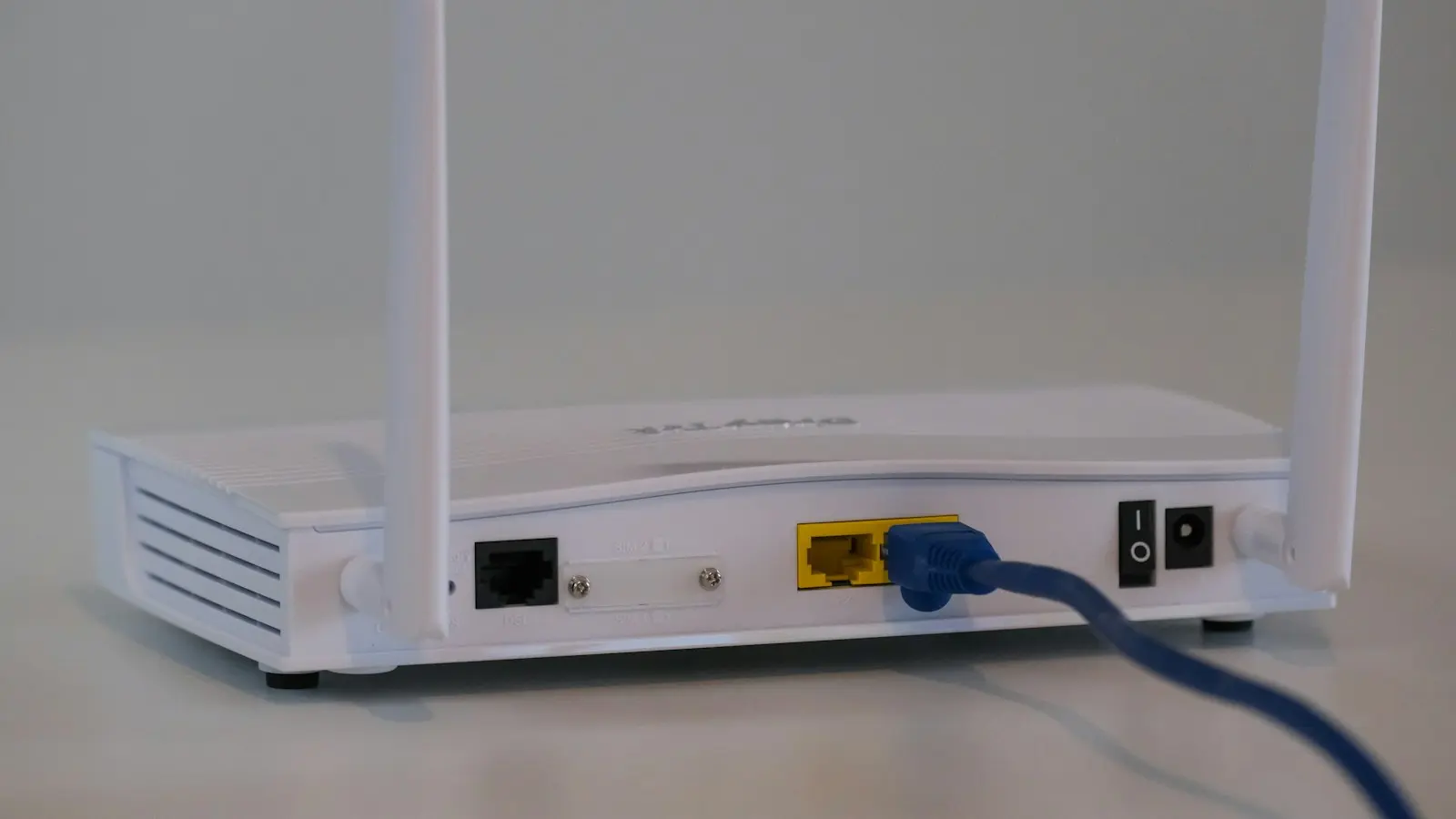
Unplug the router (and modem, if separate) from power, wait about 30 seconds, and plug it back in. Wait a few minutes for all the lights to settle. Restarting clears memory problems and can reconnect you to your provider on a better route.
3. Check for something hogging the connection
Large downloads, game updates, cloud backups or a 4K stream on another device can use most of your bandwidth. Many router apps show which devices are using the most data. Pause big downloads or schedule backups for the night.
4. Move the router
Placement matters more than most people realize:
- Put it in a central location, ideally at shoulder height or higher.
- Keep it out of cabinets and away from TVs, mirrors, fish tanks and large metal objects.
- Keep it away from microwaves and cordless phone bases.
Even moving a router from the floor to a shelf can make a noticeable difference.
5. Use the right frequency band
Most routers broadcast on 2.4 GHz and 5 GHz, and newer ones on 6 GHz too.
- Use 5 GHz or 6 GHz for laptops, phones and TVs close to the router: much faster.
- Use 2.4 GHz for devices far away or for simple smart-home gadgets.
If your router uses separate network names for each band, connect nearby devices to the 5 GHz one. If it uses one name, it should steer devices automatically.
6. Update the router’s firmware
Router software updates fix bugs, improve performance and close security holes. Check your router’s app or web settings page for a firmware update option, or enable automatic updates. If your provider supplied the router, it often updates itself.
7. Change the Wi-Fi channel (especially in apartments)
In buildings with many networks, your neighbors’ Wi-Fi can compete with yours. Most modern routers choose a channel automatically, but if yours doesn’t:
- On 2.4 GHz, use channel 1, 6 or 11, since these don’t overlap.
- On 5 GHz, there are many more channels, so crowding is less of an issue.
Wi-Fi analyzer apps on Android, or your router’s own scan feature, can show which channels are crowded.
8. Remove devices you don’t use
Old phones, smart plugs and guests’ devices stay connected and share airtime. Remove what you don’t need, and consider a separate guest network for visitors.
Also check that your network has a strong password with WPA2 or, preferably, WPA3 security. An open or weakly protected network may be used by neighbors.
9. Use a cable for devices that don’t move
A desktop computer, smart TV or games console near the router works best on Ethernet: faster, more stable and lower delay. It also frees up Wi-Fi for everything else.
10. Extend coverage with mesh Wi-Fi
For large homes, multiple floors or thick concrete walls, a single router may never cover everything. Options:
- Mesh Wi-Fi systems: several units that work together as one network and hand devices off automatically. Usually the best solution.
- Wi-Fi extenders: cheaper, but often halve speeds and may create a separate network name.
- Powerline adapters: carry the network through your electrical wiring. Results vary with the wiring.
Place mesh units or extenders halfway between the router and the dead zone, not inside the dead zone.
11. Know when the router or plan is the problem
Consider an upgrade if:
- Your router is more than five or six years old, or only supports Wi-Fi 4 or Wi-Fi 5.
- Speeds are slow even over a cable next to the router after restarting.
- Many people in your home stream, game and work online at the same time.
Contact your provider if cable speeds are consistently far below your plan. Ask them to check your line, and ask whether a newer router is available.
Quick reference
| Symptom | Most likely fix |
|---|---|
| Slow everywhere, even by cable | Restart; contact provider |
| Slow far from router | Move router; use 2.4 GHz; mesh |
| Slow in the evening | Neighbor congestion or busy network; change channel; use 5 GHz |
| One device slow | Update/restart that device; forget and rejoin network |
| Frequent drops | Firmware update; move away from interference |
The bottom line
Start by measuring: it tells you whether the problem is your internet connection, your Wi-Fi coverage, or a single device. Then restart, reposition the router, use the right band, and update firmware. For bigger homes, a mesh system is usually the real fix.