How to Back Up Your Computer on Windows and Mac (and Actually Restore It)
A failed drive, theft or ransomware can wipe out years of files in seconds. Learn the simple 3-2-1 backup plan, how to use Windows and Mac's built-in tools, and how to test your backup.
Information current as of November 2026 · How we research · Report an error
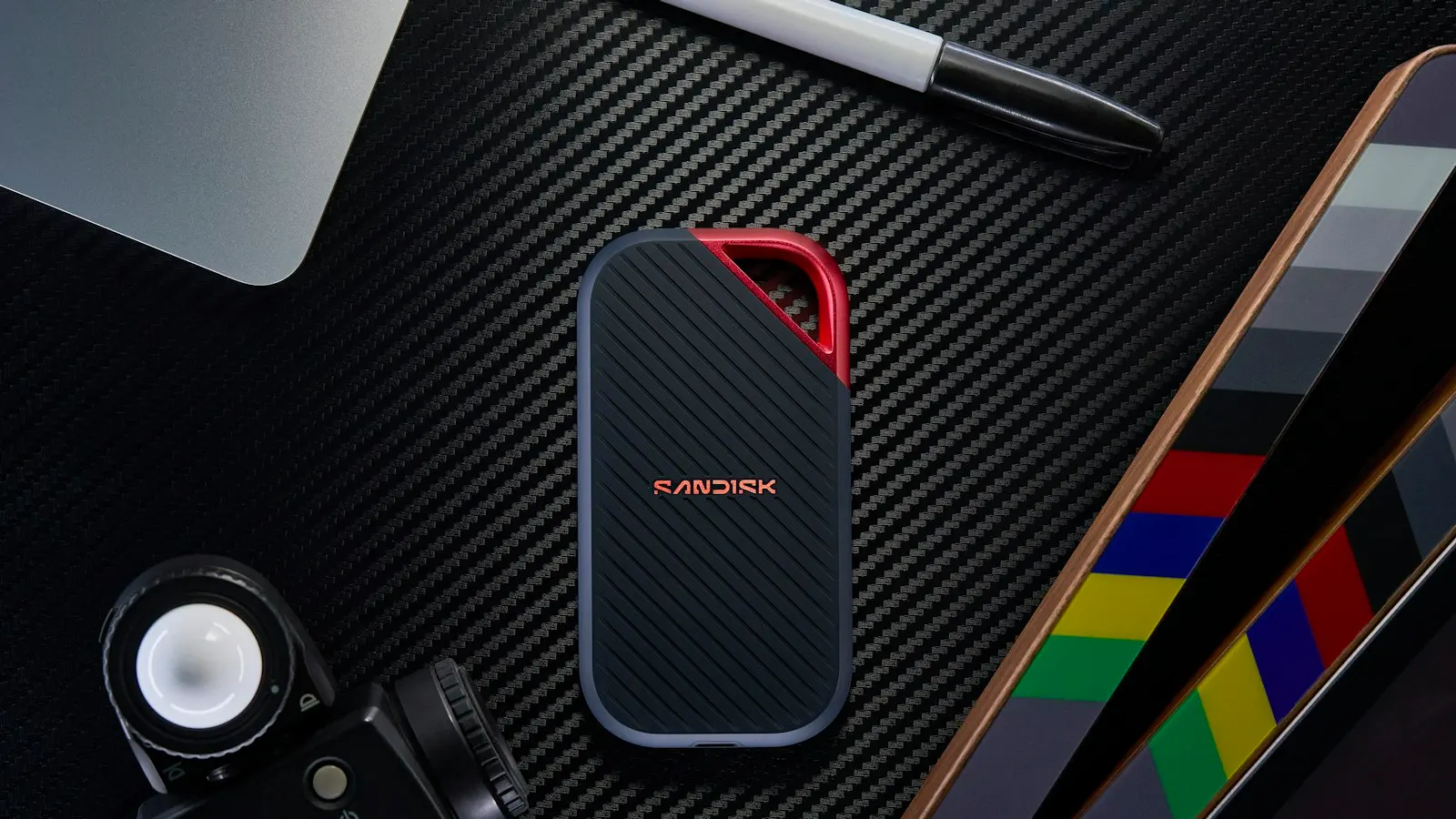
Most people only think about backups after losing something important. Drives fail without warning, laptops get stolen or dropped, and ransomware can lock every file on a computer. A good backup turns these disasters into minor inconveniences, and setting one up takes less than an hour.
The 3-2-1 rule
A widely used backup guideline says you should have:
- 3 copies of your important data (the original plus two backups),
- on 2 different types of storage (for example, an external drive and the cloud),
- with 1 copy stored off-site (somewhere other than your home or office).
For most people, a practical setup is:
- Your files on your computer.
- An automatic backup to an external drive.
- Your important folders synced or backed up to a cloud service.
Sync is not the same as backup
Cloud services like OneDrive, iCloud Drive, Google Drive and Dropbox mostly sync files: if you delete or overwrite a file on your computer, the change is copied to the cloud. They’re excellent for keeping files available everywhere, and many keep deleted files and older versions for a limited time. But a real backup keeps separate, older copies you can return to. Use both.
Backing up on Windows
Option 1: Windows Backup and OneDrive
Windows 11 includes the Windows Backup app, which can back up your folders (Desktop, Documents, Pictures and more), many settings and your list of apps to your Microsoft account and OneDrive.
- Open the Start menu and search for Windows Backup.
- Choose which folders to back up and turn on settings and apps backup.
- Make sure you have enough OneDrive storage. The free plan includes 5 GB; larger amounts require Microsoft 365 or a OneDrive storage plan.
This is great for getting a new PC set up quickly, but it relies on syncing, so add a local backup too.
Option 2: File History to an external drive
File History automatically saves copies of your files at regular intervals, so you can restore earlier versions.
- Connect an external drive.
- Open Control Panel → System and Security → File History.
- Select the drive and click Turn on.
- Under Advanced settings, choose how often to save copies and how long to keep them.
To restore a file, open File History and click Restore personal files, or right-click a folder in File Explorer and choose Restore previous versions where available.
Option 3: a full system image
For a complete copy of everything, including Windows and your apps, you can use third-party backup software from your drive’s manufacturer or a reputable backup company. Windows still includes an older System Image Backup tool in Control Panel, but Microsoft no longer develops it, so dedicated software is usually a better choice for full images.
Backup software tip · We may earn a commission
Want a full system image on Windows? AOMEI Backupper is a long-established backup tool that can create system images, clone drives and schedule automatic backups to an external drive. It has a free Standard edition; paid editions add more features. Whichever tool you choose, test a restore before you rely on it.
See AOMEI Backupper →Backing up on Mac
Time Machine
Macs include Time Machine, one of the easiest backup tools available.
- Connect an external drive (ideally at least twice the size of your Mac’s storage).
- Open System Settings → General → Time Machine.
- Click Add Backup Disk and select the drive. You can choose to encrypt the backup, which is a good idea.
Time Machine then backs up automatically, keeping hourly backups for the past 24 hours, daily backups for the past month and weekly backups for older months, until the drive is full, at which point the oldest backups are removed.
To restore files, open the folder where the file was, then open Time Machine from the menu bar or Launchpad and browse back in time.
iCloud Drive
Turning on Desktop & Documents Folders in System Settings → [your name] → iCloud → iCloud Drive keeps those folders synced to iCloud. Like other sync services, it’s convenient, but not a substitute for Time Machine.
Choosing an external drive
- Capacity: aim for at least the size of your computer’s storage, ideally double, so it can hold several versions.
- Type: a hard disk drive (HDD) gives more space for the money; a solid-state drive (SSD) is faster and more durable.
- Keep it safe: store it away from your computer when not in use if possible, and consider a second drive kept elsewhere.
Protecting against ransomware
Ransomware can encrypt files on any drive connected to your computer, including your backup drive. To reduce the risk:
- Disconnect the external drive when a backup is finished, if your setup allows.
- Use a cloud service with version history so you can restore files from before an attack.
- Keep Windows or macOS and your apps updated.
Test your backup
A backup you’ve never tested is a hope, not a plan. Every few months:
- Pick a few random files and restore them to a different folder.
- Open them to make sure they work.
- Check the date of the latest backup to confirm it’s still running.
The bottom line
Use your computer’s built-in tools: File History on Windows or Time Machine on Mac to an external drive, plus a cloud service for your important folders. Check now and then that it’s working. If your computer died tomorrow, you’d lose nothing important.