Why Your Phone Battery Drains So Fast, and 12 Fixes That Work
Phone dying before dinner? Find out what's really using your battery on iPhone and Android, which settings make the biggest difference, and when the battery itself needs replacing.
Information current as of November 2026 · How we research · Report an error
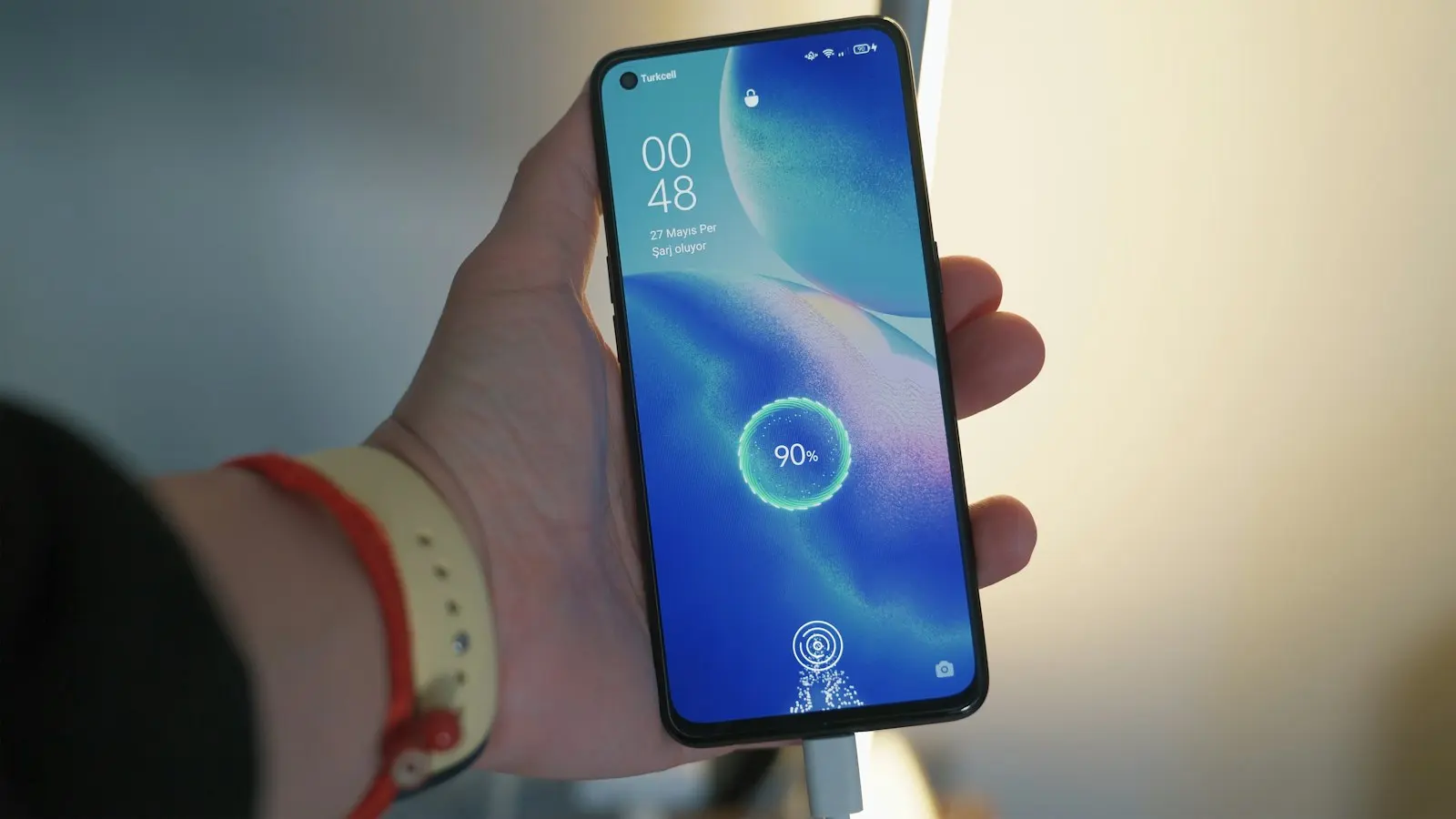
A phone that can’t make it through the day is one of the most common tech frustrations. Sometimes the cause is a single misbehaving app; sometimes it’s a handful of settings; and sometimes the battery itself is simply worn out. This guide helps you figure out which, and fix it.
Step 1: find out what’s using your battery
Before changing settings at random, look at the data your phone already collects.
- iPhone: go to Settings → Battery. You’ll see battery usage by app for the last 24 hours or 10 days. Tap an app to see how much was used on screen versus in the background.
- Android: go to Settings → Battery and look for Battery usage (the exact wording varies by manufacturer). You’ll see which apps used the most.
Look for anything surprising: an app you barely opened that used a lot of battery, or heavy background activity. That’s often your culprit.
Step 2: the fixes, from biggest impact to smallest
1. Lower screen brightness and timeout
The screen is usually the single biggest power user. Turn on auto-brightness, and set the screen to turn off after 30 seconds or 1 minute.
- iPhone: Settings → Display & Brightness → Auto-Lock.
- Android: Settings → Display → Screen timeout.
2. Use dark mode on OLED screens
If your phone has an OLED screen (most mid-range and flagship phones do), black pixels are actually turned off. Dark mode can noticeably reduce power use, especially at higher brightness.
3. Limit background activity for heavy apps
Social media, shopping and some news apps refresh constantly in the background.
- iPhone: Settings → General → Background App Refresh. Turn it off for apps that don’t need it.
- Android: open the app’s settings in Settings → Apps → [app] → Battery and choose Restricted or Optimized.
4. Review location permissions
GPS and location tracking use a lot of power. Set apps to While Using the App instead of Always, and turn location off entirely for apps that don’t need it.
- iPhone: Settings → Privacy & Security → Location Services.
- Android: Settings → Location → App location permissions.
5. Trim notifications
Every notification wakes the screen and the processor. Turn off notifications for apps that don’t need your immediate attention.
6. Use Low Power Mode or Battery Saver
- iPhone: Settings → Battery → Low Power Mode, or add it to Control Center.
- Android: Settings → Battery → Battery Saver or Power saving.
These modes reduce background activity and visual effects. Many phones can switch them on automatically at a chosen percentage.
7. Watch out for weak signal
When mobile reception is poor, your phone boosts its radio power to stay connected, which drains the battery quickly. In basements or rural areas with bad signal, connecting to Wi-Fi helps. If you have no signal at all for a long time, airplane mode (with Wi-Fi turned back on if needed) saves a lot of power.
8. Reduce always-on features
Features like Always-On Display, high refresh rates (120 Hz), and live wallpapers look great but cost power. Try turning them off or lowering the refresh rate to see whether it makes a difference for you.
9. Update your apps and system
A buggy app version can drain your battery in the background. Updates often fix these problems. Note that battery life can be a little worse for a day or two after a major system update while the phone re-indexes your data; that’s normal.
10. Remove or replace problem apps
If one app keeps showing up at the top of the battery list without a good reason, try logging out and back in, reinstalling it, or using the website instead.
11. Restart your phone
A restart can stop a stuck process that’s been running in the background. It’s quick and surprisingly effective.
12. Keep it cool
Batteries drain faster and wear out faster when hot. Avoid direct sun, don’t game while charging, and remove thick cases if the phone gets hot.
Is it time for a new battery? Answer 5 quick questions and find out.
Free Battery Health Checker →Step 3: check the battery’s health
Batteries wear out with time and charge cycles. If your phone is a few years old, the fixes above may only help a little.
- iPhone: Settings → Battery → Battery Health (on some models Battery Health & Charging). If maximum capacity is significantly reduced or you see a service message, a replacement will make a big difference.
- Android: check Settings → Battery or the device care section. Some manufacturers also offer diagnostic apps.
Signs of a worn battery include sudden drops from 20% to 0%, shutdowns in the cold, and the phone getting hot during light use. A battery replacement usually costs far less than a new phone.
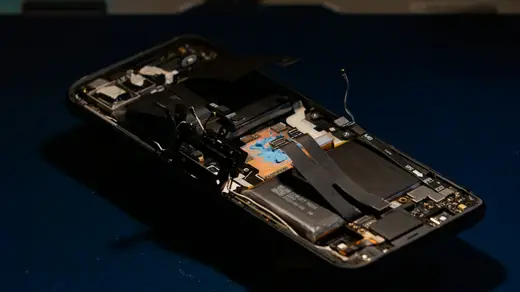
Safety first: if the battery ever swells, causing the case or screen to bulge, stop using and charging the phone and take it to a repair shop.
Shopping tip · We may earn a commission
Out all day? A slim power bank (10,000 mAh is enough for about two phone charges) is often cheaper than a new battery. Choose a reputable brand with USB-C Power Delivery.
Browse power banks on AliExpress →Battery myths to ignore
- Closing all your apps saves battery. Usually false on modern phones; it can even use more power.
- You need to fully drain the battery before charging. False for lithium-ion batteries; partial charges are fine.
- Battery-saving “booster” apps help. Mostly unnecessary. Built-in settings are more effective.
The bottom line
Start with the battery usage screen to find the real culprit. Then lower brightness, restrict background activity, limit location access and use battery saver modes. If your phone is old and still struggles, check battery health: a new battery often makes it feel like a new phone.
Having a different phone problem? See our complete phone troubleshooting guide for iPhone and Android.