How Wi-Fi Works: Routers, Frequency Bands and Why Your Signal Drops
Wi-Fi is just radio, but understanding how it travels explains almost every connection problem. Learn what your router really does, what 2.4, 5 and 6 GHz mean, and why walls matter.
Information current as of November 2026 · How we research · Report an error

You probably use Wi-Fi dozens of times a day without thinking about it. Yet most connection problems, from a slow video call to a “dead zone” in the bedroom, make sense the moment you understand one simple fact: Wi-Fi is radio. Your router and your devices are constantly talking to each other with invisible radio waves, a lot like walkie-talkies.
This article explains what happens between your router and your phone, what the different frequency bands mean, and why your signal behaves the way it does.
Wi-Fi and the internet are not the same thing
It’s easy to mix them up, but they are two separate links:
- Your internet connection comes into your home through a cable, fiber line, phone line or mobile network. It connects your home to your internet provider.
- Wi-Fi is the short-range wireless network inside your home. It connects your devices to your router.
Your router sits in the middle. It receives data from the internet and passes it to your devices over Wi-Fi, and the other way round. This is why you can sometimes see “Connected, no internet”: your phone is talking to the router perfectly well, but the router can’t reach the internet.
Quick test: if every device in the house is slow at the same time, the problem is usually the internet connection. If only devices far from the router are slow, it’s usually the Wi-Fi.
What your router actually does
The box your provider gave you usually combines several devices in one:
- A modem, which translates the signal from your provider’s line into data.
- A router, which shares that one internet connection between all your devices and gives each one a private address on your home network.
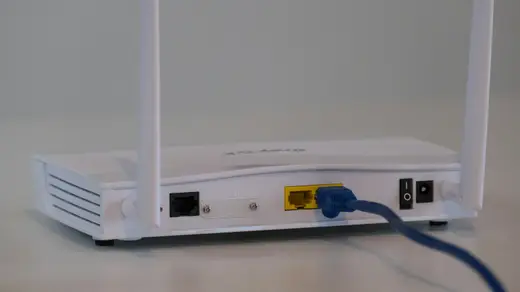
- A wireless access point, the part with the antennas that sends and receives Wi-Fi.
- Often a small switch, which provides the Ethernet ports on the back.
When you load a web page, your phone sends a request to the router by radio. The router forwards it to the internet, waits for the answer, and sends the response back to your phone. All of this takes a few thousandths of a second.
Radio waves, frequencies and channels
Wi-Fi sends data by changing a radio wave very quickly in ways the receiving device can decode. The frequency is how many times per second that wave oscillates. Wi-Fi uses three main frequency bands.
2.4 GHz: long range, more crowded
The 2.4 GHz band travels further and passes through walls better. The downside is that it’s slower and very crowded: neighbors’ networks, Bluetooth devices, baby monitors and even microwave ovens use the same frequencies. It also offers only a few channels that don’t overlap.
5 GHz: faster, shorter range
The 5 GHz band offers much more space and therefore higher speeds, with less interference. Its waves are weaker at getting through walls and floors, so the signal fades faster as you move away from the router.
6 GHz: fastest, newest
Newer routers and devices that support Wi-Fi 6E or Wi-Fi 7 can also use the 6 GHz band. It has lots of clean, uncrowded space and very high speeds, but even shorter range than 5 GHz. Both your router and your device must support it.
| Band | Range | Speed | Interference |
|---|---|---|---|
| 2.4 GHz | Longest | Lowest | High |
| 5 GHz | Medium | High | Low |
| 6 GHz | Shortest | Highest | Very low |
Many modern routers use band steering: they broadcast one network name and automatically move each device to the best band.
Why your signal drops
Distance
Radio signals spread out and get weaker as they travel. Doubling the distance from the router doesn’t halve the signal; it drops much faster. Wi-Fi also adjusts its speed to the signal strength, so a weaker signal means a slower connection, not just “fewer bars.”
Walls, floors and materials
Different materials absorb or reflect radio waves differently:
- Wood, drywall and glass: small loss.
- Brick and concrete: large loss.
- Metal (appliances, metal doors, mirrors with metal backing, radiators): can block the signal almost completely.
- Water: absorbs Wi-Fi well. Aquariums, and yes, people, weaken signals.
This is why a router hidden in a cabinet, behind a TV or on the floor in a corner often performs badly.
Interference and crowding
In apartment buildings, dozens of networks may compete for the same channels. Devices have to take turns talking, which slows everyone down, especially on 2.4 GHz.
Too many devices
Each device shares the router’s airtime. Phones, laptops, TVs, cameras and smart plugs all add up. Older devices that only support older Wi-Fi standards can also slow the network for others.
Wi-Fi generations in plain English
Wi-Fi standards have names like 802.11ac, but they now also have simple numbers:
- Wi-Fi 4 (802.11n): older, still common on cheap devices.
- Wi-Fi 5 (802.11ac): common on routers and devices from the late 2010s.
- Wi-Fi 6 / 6E (802.11ax): better at handling many devices at once; 6E adds the 6 GHz band.
- Wi-Fi 7 (802.11be): the newest generation, designed for very high speeds and lower delay.
You only get the benefits of a newer generation when both the router and the device support it.
How to get a better signal
- Put the router in a central, open, raised spot, not in a cabinet or on the floor.
- Keep it away from metal and large appliances, and away from the microwave.
- Use 5 GHz or 6 GHz for devices near the router, and 2.4 GHz only for distant or simple smart-home devices.
- Restart the router occasionally and install firmware updates.
- Use a mesh Wi-Fi system for large homes or homes with thick walls. Several units work together to cover the whole space with one network.
- Use an Ethernet cable for devices that never move, such as a TV or desktop computer. It’s faster and frees up Wi-Fi airtime for everything else.
The bottom line
Wi-Fi is radio: it weakens with distance, struggles through dense materials, and has to share the air with everything around it. Once you think of it that way, most problems become obvious, and so do the fixes. A better-placed router often helps more than a more expensive one.