How to Speed Up a Slow Windows 11 PC: 12 Fixes That Actually Work
Your computer takes forever to boot and apps freeze? Work through these 12 practical fixes, from quick wins to hardware upgrades, to make Windows 11 fast again.
Information current as of November 2026 · How we research · Report an error
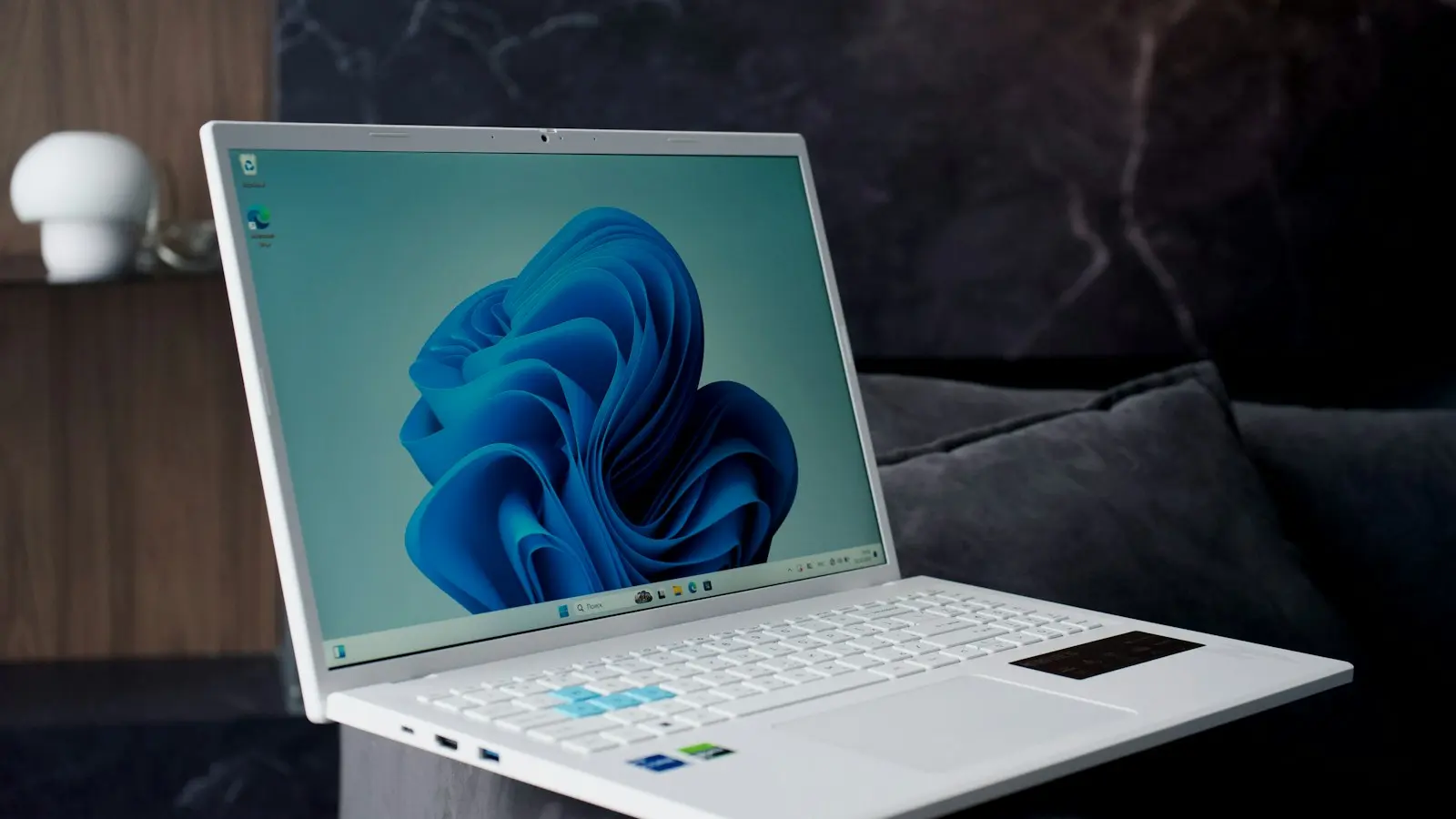
A slow computer is rarely caused by one big problem. Usually it’s a pile of small ones: too many apps launching at startup, a nearly full drive, an outdated driver, or a background process quietly eating your memory. The good news is that most of these are free to fix and take only a few minutes.
Work through the steps below in order. The early ones are the fastest and fix the most common causes. Restart your PC after each group of changes so you can tell what actually helped.
1. Restart your PC properly
It sounds too simple, but many people never truly restart. Since Windows 8, clicking Shut down often performs a “hybrid” shutdown that saves the system state instead of clearing it. Over days or weeks, memory leaks and stuck processes build up.
Choose Start → Power → Restart instead. A restart always does a full reload of Windows and clears out temporary state. If your PC feels faster afterward, make a habit of restarting at least once a week.
2. Find out what is slowing you down
Before changing settings at random, look at what’s actually using your resources:
- Press Ctrl + Shift + Esc to open Task Manager.
- Click Processes, then click the CPU, Memory, and Disk column headers to sort by usage.
- Watch for a minute. Anything that stays near the top while you aren’t using it is a suspect.
If one app is constantly using a lot of CPU or disk, you’ve likely found your culprit. Update it, change its settings, or uninstall it if you don’t need it.
3. Disable unnecessary startup apps
Many programs add themselves to startup without asking: chat apps, game launchers, cloud tools, and updaters. Each one slows your boot and keeps running in the background.
- Open Task Manager and select Startup apps on the left.
- Look at the Startup impact column.
- Right-click anything you don’t need right away and choose Disable.
Disabling a startup app doesn’t uninstall it. It just stops it from launching automatically; you can still open it whenever you want. Keep your antivirus and anything related to your hardware (touchpad, audio, graphics) enabled.
4. Uninstall programs you don’t use
Go to Settings → Apps → Installed apps and sort by size or install date. New PCs in particular often come with trial software and utilities that run in the background. If you don’t recognize something, search its name before removing it, since some entries are drivers your hardware needs.
5. Free up disk space
When your system drive is nearly full, Windows has less room for its page file and updates, and performance drops. Aim to keep at least 15–20% of the drive free.
- Open Settings → System → Storage and click Temporary files. Review the list and remove what you don’t need. Be careful with the Downloads checkbox, since it deletes your Downloads folder.
- Turn on Storage Sense on the same page so Windows cleans temporary files automatically.
- Move large files such as videos and old projects to an external drive or cloud storage.
6. Install Windows and driver updates
Updates frequently include performance and stability fixes. Go to Settings → Windows Update and click Check for updates. Also open Advanced options → Optional updates, where driver updates often appear.
For graphics drivers, it’s usually best to download the latest version directly from your graphics card maker (NVIDIA, AMD, or Intel), especially if you play games or edit video.
7. Choose a better power mode
On laptops especially, Windows may be limiting performance to save battery.
- Open Settings → System → Power & battery.
- Under Power mode, choose Best performance when plugged in.
This uses more power and may make the fans louder, but it can make a noticeable difference on mid-range laptops.
8. Turn off visual effects
Animations and transparency look nice but cost resources on older or low-end hardware.
- Press Windows key, type “Adjust the appearance and performance of Windows” and open it.
- Select Adjust for best performance, or uncheck individual animations you don’t care about.
- You can also go to Settings → Accessibility → Visual effects and turn off Transparency effects and Animation effects.
9. Scan for malware
Malware and unwanted adware often run hidden in the background, using CPU and network. Open Windows Security → Virus & threat protection and run a Quick scan. If something seems wrong, choose Scan options → Microsoft Defender Offline scan, which restarts your PC and scans before Windows fully loads.
10. Reduce what runs in your browser
For many people, the “slow PC” is actually a slow browser. Every open tab and extension uses memory.
- Remove extensions you don’t actively use.
- Turn on your browser’s memory or efficiency mode (Edge and Chrome both have one) so inactive tabs go to sleep.
- Use your browser’s own task manager (Shift + Esc in Chrome and Edge) to find heavy tabs.
11. Upgrade to an SSD or add more RAM
If your PC still uses a traditional hard disk drive (HDD), replacing it with a solid-state drive (SSD) is the single biggest upgrade you can make. Boot times can drop from minutes to seconds. To check what you have, open Task Manager → Performance → Disk, which shows the drive type.
Memory matters too. For everyday Windows 11 use with a browser and office apps, 8 GB is the practical minimum and 16 GB is comfortable. You can see your installed memory and how much is in use under Task Manager → Performance → Memory. If it’s regularly above 80–90%, more RAM will help.
12. Reset Windows as a last resort
If nothing else works, a reset gives you a clean system. Go to Settings → System → Recovery → Reset this PC and choose Keep my files. This reinstalls Windows and removes your apps, but keeps your personal files.
Before you reset: back up your important files anyway, and write down the apps you’ll need to reinstall. “Keep my files” is reliable, but a backup costs you nothing.
Quick checklist
| Fix | Time needed | Impact |
|---|---|---|
| Restart properly | 2 minutes | Medium |
| Disable startup apps | 5 minutes | High |
| Free up disk space | 10 minutes | Medium–High |
| Updates and drivers | 15–30 minutes | Medium |
| Power mode | 1 minute | Medium on laptops |
| Upgrade to SSD | 1–2 hours | Very high on old PCs |
Final thoughts
Start with the free fixes: restart, trim your startup apps, clean up your drive, and update. For most PCs, that’s enough to feel the difference. If your computer is several years old and still uses a hard drive, an SSD upgrade is the best money you can spend on it.